iPhone
iOS 18 or later.
BETA · GET STARTED
Install Plink, connect your glasses, build your first HUD page and bring your preferred activity data into view.
iOS 18 or later.
Smart glasses.
Compatible model with the free Plink Connect IQ data field.
Plink currently receives live activity data through Garmin Connect IQ on the supported Edge models below.
Complete these steps in order to connect the Plink app, the Connect IQ data field and your glasses.
Download Plink from the App Store and open the setup flow.
Install the free Plink data field on your compatible Garmin Edge.
Open Plink, scan for your glasses and complete the connection flow.
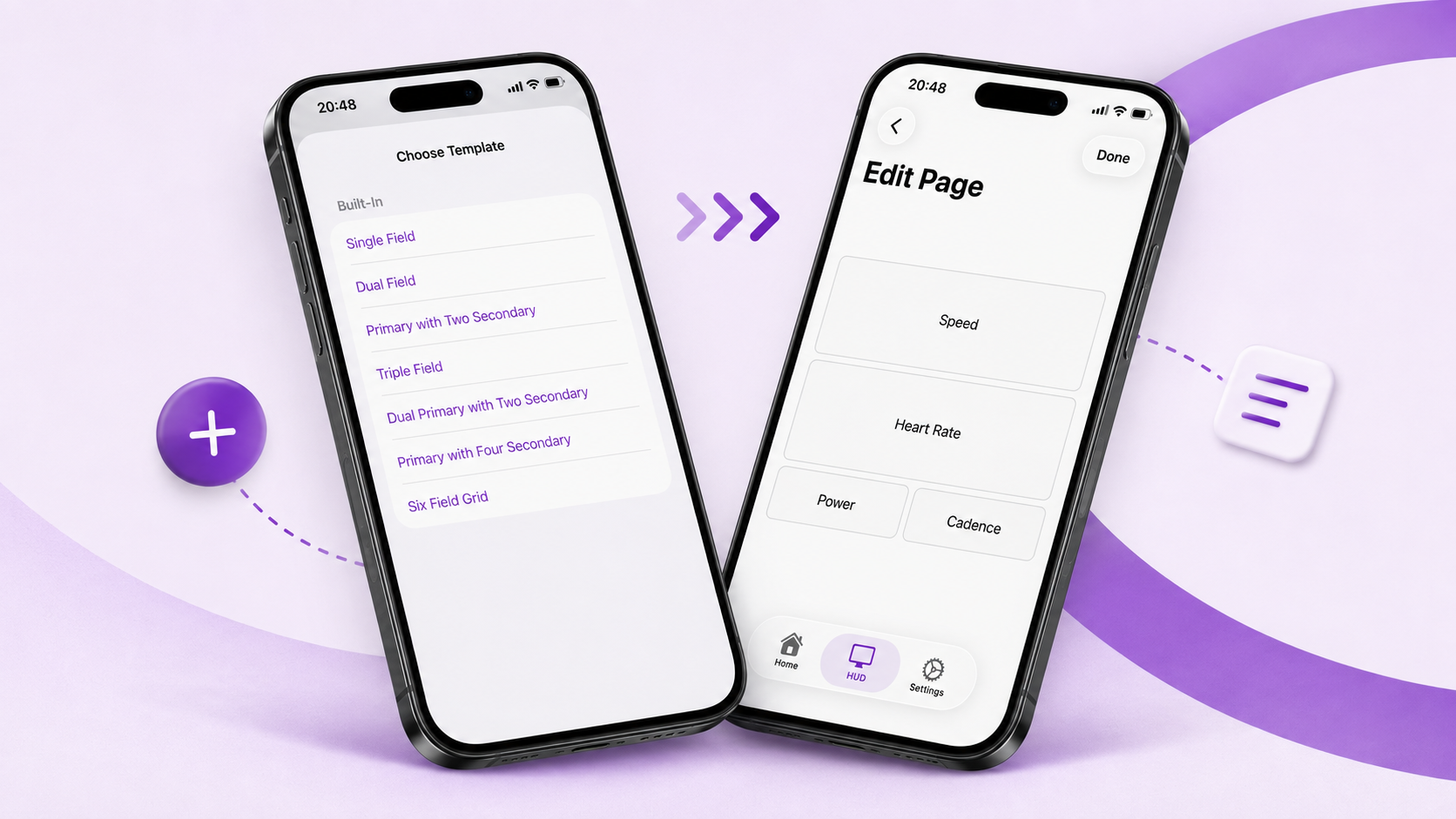
Choose a layout, assign metrics, preview the page and save it.
Choose from around 40 fields, including speed, power, heart rate, cadence, altitude and battery.
Add Plink to a data screen in the activity profile you use.
Confirm the glasses are connected in Plink before starting.
Live metrics appear on the active HUD page as data arrives from your Edge.
Move between pages with a glasses gesture, Siri or an Apple Shortcut.
Ask the Plink community, compare setups and share feedback with the team.
Plink is beta. Read the known issues, install both apps and follow the first-start setup.